 SGT Apps
Print them
- On Print Barcodes, click Add products from.
- Choose where from, and tick the records you want. Search and filters help you find them.
- Check the list and how many labels each product gets, then add them.
- Click Print labels.
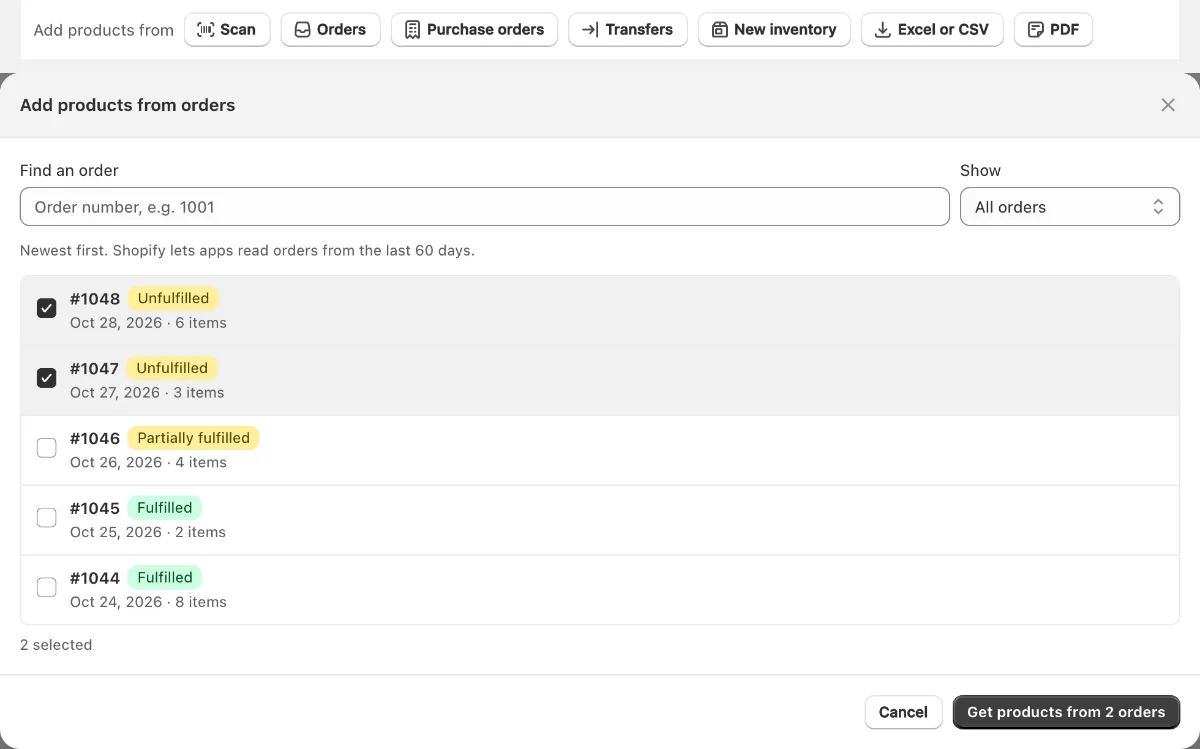
Where labels can come from
| Source | Labels for each product |
|---|---|
| Orders | Everything ordered, what's on the order now, or what's not yet fulfilled |
| Purchase orders | Everything, what has arrived, or what's still to arrive |
| Transfers | Everything, what has arrived, or what's still to arrive |
| New inventory | Deliveries received, or products added since a date |
| Scan | One label for each scan: handy for reprinting old labels |
| Excel or CSV | Your quantity column, matched by SKU, barcode, variant ID, or handle and options |
| The quantity on each line, matched by SKU, barcode or product title |
Straight from Shopify
On an order's page, or with orders ticked on the order list, choose More actions then Print barcode labels. The same button is on the product list, a product, a variant and a collection. For a whole delivery, use the steps above.
Using Shopify? SGT is our app for this: see it on the Shopify App Store (free plan, 4.8 from 53 reviews).
Good to know
- The first time, Shopify asks you to allow access. Click Allow.
- Shopify lets apps read only the last 60 days of orders.
- Custom items and deleted products have no variant to print, so they're named and left out.
- Units rejected on a delivery get no labels under "What has arrived".
Need a mix instead? Filter by vendor, type or tag.
Prefer video? Watch the 90-second SGT tour on YouTube.
Frequently asked questions
How do I print one label for each unit in stock?
Choose New inventory, then Products added, and choose One per unit in stock. Or type the numbers in the print list.
How do I print labels for everything in a purchase order?
On Print Barcodes, click Add products from, then Purchase orders. Tick the order, choose Everything on the purchase order at the top of the review screen, and print.
How do I print labels only for stock that arrived in a transfer?
Choose Transfers, tick the transfer, and choose What has arrived. Labels match the accepted units, and rejected ones are left out.
Can I print labels from a Shopify order?
Yes. Open the order, then More actions, then Print barcode labels. Or tick several on the order list. Shopify shares only the last 60 days of orders with apps.
Does this replace Stocky's label printing?
It covers printing from purchase orders and deliveries in Shopify. The Stocky replacement guide, on our guides page, covers the rest.
Is printing from purchase orders free?
In SGT, yes. Printing labels from orders, purchase orders and transfers works on every plan, including Free.