 SGT Apps
The filters
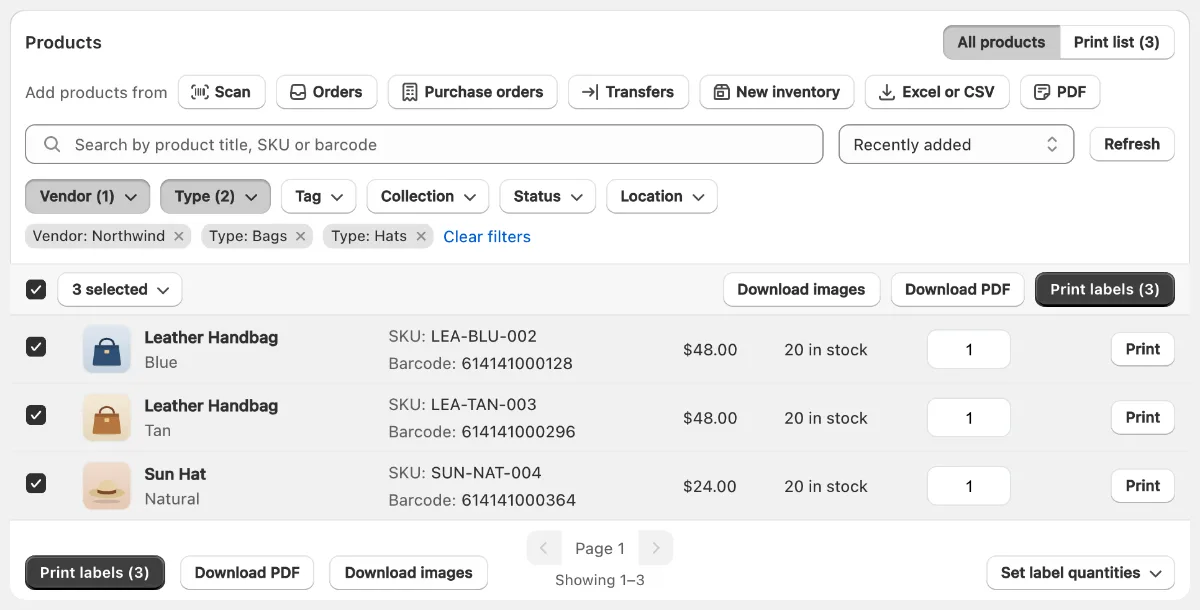
The same filters are on Manual Generation and Print Barcodes, and they work together:
- Vendor, Type, Tag, Collection: with Is or Is not.
- Status: Active, Draft, Archived or Unlisted.
- Location: products stocked at any location you tick.
- Search: by title, SKU or barcode, on top of your filters.
Using Shopify? SGT is our app for this: see it on the Shopify App Store (free plan, 4.8 from 53 reviews).
Filter examples
| You want | Set |
|---|---|
| Labels for one supplier's new shirts | Vendor is Northwind + Type is Shirt + Status is Active |
| Everything not labelled yet | Tag is not "labelled" |
| One shop's stock only | Location + Collection |
| One brand with no barcode | Missing barcode tab + Vendor |
Generate codes for the results
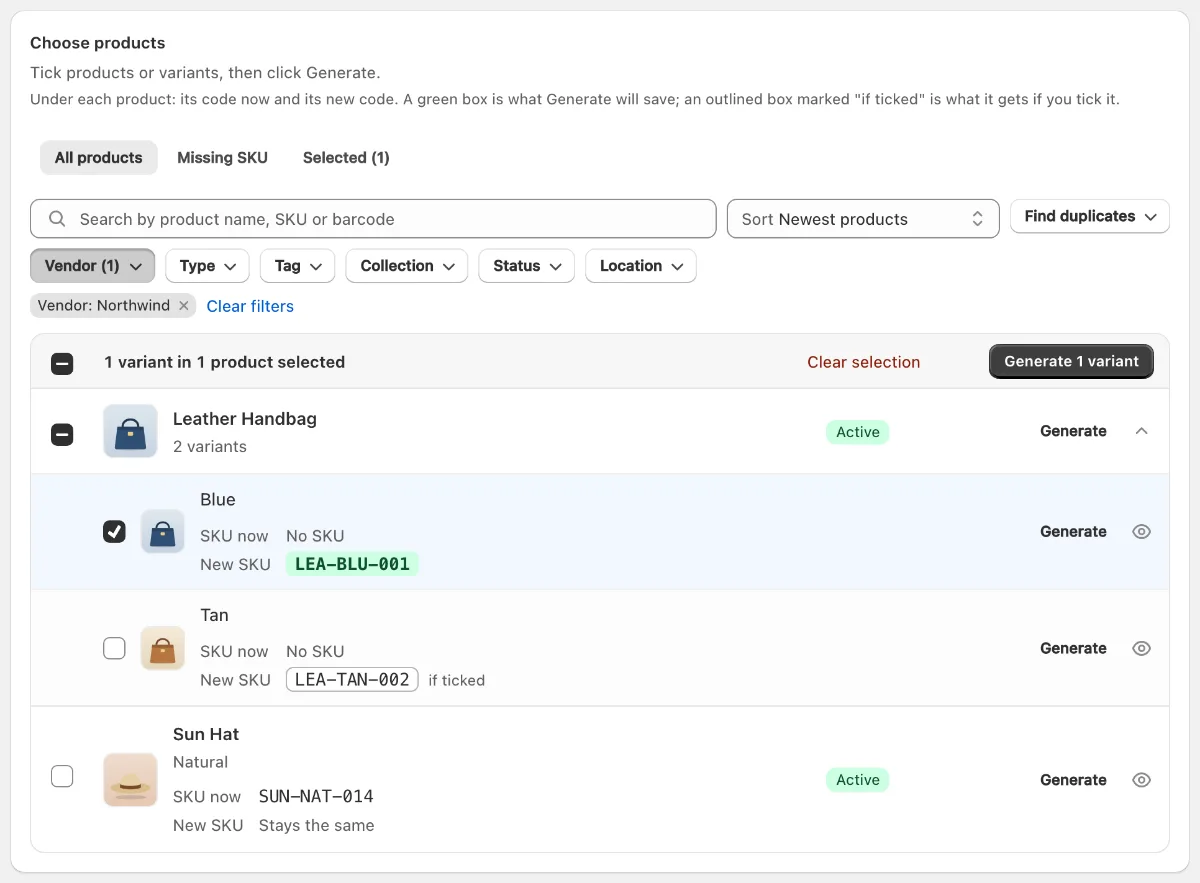
- On Manual Generation, set your filters. Use the Missing SKU or Missing barcode tab for codes you don't have yet. The tabs follow your Apply To choice.
- Sort by Newest products, Oldest products or Title. With Select all, the run follows that order, so numbers run in order too.
- Tick the box at the top. If there's more than one page, click Select all products that match (paid plan). On the free plan, tick products by hand.
- Check the new codes on each row, then click Generate.
Print labels for the results
- On Print Barcodes, set your filters, then choose Select all.
- Type how many labels each needs. You can select any number of products.
- Click Print labels. One print makes up to 10,000 labels, so print in parts above that.
Prefer video? Watch the 90-second SGT tour on YouTube.
Frequently asked questions
How do I print barcodes for only one vendor in Shopify?
On SGT's Print Barcodes page, open All products, choose your vendor in the Vendor filter, select all, and print. Add Type or Tag to narrow it further.
How do I generate SKUs for one collection only?
On Manual Generation, set the Collection filter, tick the top box, click Select all products that match if there is more than one page, and generate.
Can I print everything except one tag or vendor?
Yes. Vendor, Type, Tag and Collection each have Is not, so you can exclude what you've already labelled.
What order will my new SKU numbers be in?
With Select all or a ticked page, the order on screen, so set the sort first. Products ticked one by one follow the order you ticked them.